Before you start
Have your setting and band catalogue, metal choices, diamond pricing or inventory list, storefront domain, and quote recipient ready. Open My Ring Builder and create or edit a named configurator. Choose a name your team will recognise, such as “Bridal collection”.
Each configurator has its own link and offered options. Pricing is saved at workspace level and applies across configurators; changing a shared price can affect more than the builder you are editing.

1. Builder: choose what shoppers can design
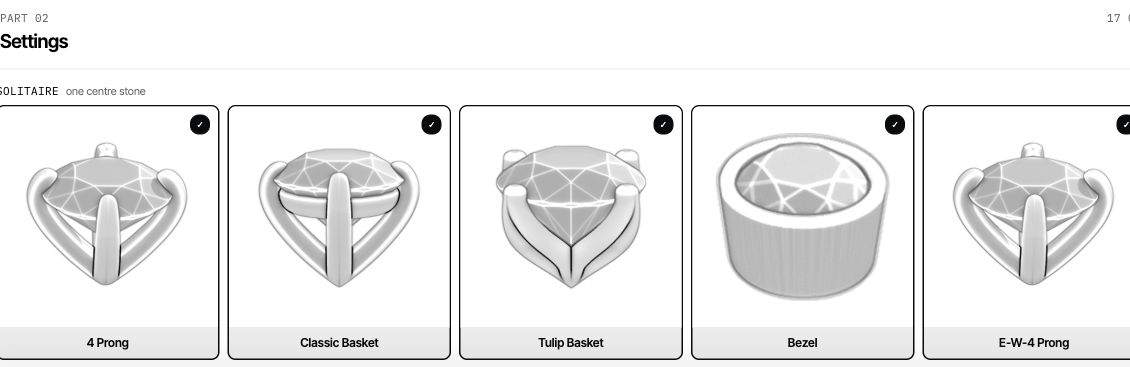
- Choose the shapes, settings and bands you offer. Include east-west styles only when you sell that orientation; they can be configured and priced separately.
- Select metals and finishes, then choose a valid default design. Check shape and setting compatibility in the preview.
- Choose which diamond origins to offer. Keep Natural disabled until its prices or inventory are ready.
- Choose centre and side stone colours. The colour offering belongs here; its price belongs in Pricing.
Offerings and defaults serve different purposes: enabling an option makes it selectable, while a default determines the opening design. Save configurator and read the status beside the button. Next moves between steps; it does not replace Save.
2. Diamond Feed: decide where diamonds come from
Use configured weights and grades when you price a diamond specification. Use inventory when shoppers must select a particular stock stone. You can choose a different diamond method for Lab Grown and Natural in Pricing.
For inventory, upload CSV or TSV, review column mappings and import results, and set markup rules. Uploading stock alone does not activate inventory pricing. Select From my diamond feed for the relevant origin in Pricing. Follow the inventory how-to.
3. Pricing: match your catalogue
Answer How are settings priced? Choose One base price, plus add-ons or Each setting has its own price per metal. Then configure Lab Grown and Natural in their separate diamond tabs. Choose full prices by weight, rates per carat by shape, a shape-and-weight table, or inventory.
Set currency, ring sizes, grade adjustments, quote limits, exceptions and rounding. A blank full-diamond price requires a quote; an explicit zero is a price. Review prefilled values before saving. See the pricing guide.
4. Publish: connect the buying flow
- Choose whether customers request a quote or add a ring to cart. Enter the email address that should receive quote requests, including for any quote-only selections.
- Set the allowed storefront domain. Use a hostname such as yourstore.com.
- Copy the generated embed or platform setup from Publish. For Shopify and WooCommerce, follow the platform instructions rather than using a display-only iframe as a checkout integration.
- Save and confirm the status. Open the configurator on your actual storefront, not only in the dashboard preview.
Launch check
- Test the default ring and a second shape, setting, band and metal on desktop and mobile.
- Compare known catalogue totals with the builder. Test both diamond origins if offered, including a blank price and a quote-only size.
- Submit a test quote and confirm it reaches the recipient with the intended design.
- For cart mode, add a ring and compare storefront, cart and checkout amounts. Account for store currency conversion when currencies differ.
- Save and reopen a design link. For inventory, check that the chosen stock stone and origin are correct.
If saving fails, use the displayed validation message to identify the step to fix. Missing shape rates, incomplete offered setting prices, conflicting exceptions and a missing quote recipient can prevent saving.