What is separate and what is shared
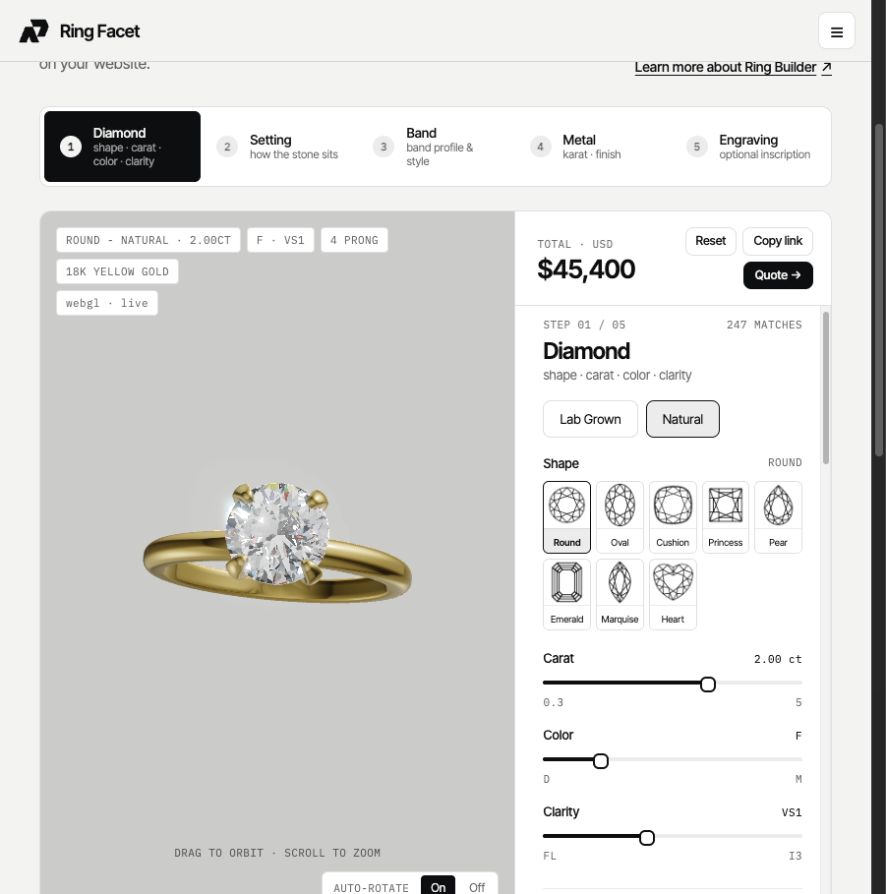
Each origin has its own diamond method, offered weights, prices, colour and clarity adjustments, centre stone colours, fancy-colour prices and quote limits. The mounting, metal, setting, band, size rules, currency, exceptions and final rounding are shared. A Natural profile does not require a second ring catalogue.
Configure prices first
- Open My Ring Builder → your configurator → 3. Pricing → Diamond prices.
- Configure Lab Grown using the method that matches your catalogue. Existing Lab pricing may remain unchanged on its legacy method.
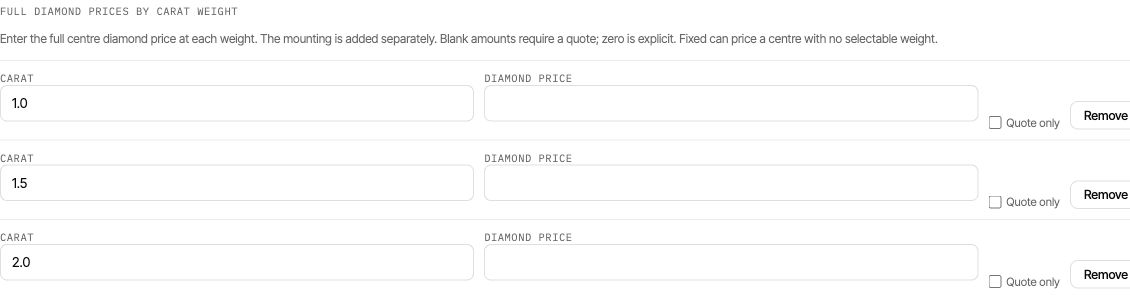
- Open Natural. Choose full prices by weight, per-carat shape rates, a shape-and-weight table, or your feed. Enter your own prices or import Natural stock.
- Configure the origin’s offered weights, grade adjustments, centre colours and quote limits. Review any blank full-price cells.
- Save configurator and confirm that the save succeeds.
Lab Grown values are not a substitute for Natural prices. Missing full prices or rates require a quote at runtime, and the editor requires rates for offered shapes when saving a per-carat method. Compare diamond methods.
Enable origins and choose the default
Return to 1. Builder → Diamond types offered. Enable Natural once it is ready, keep Lab Grown enabled if you offer both, and select the default diamond type. Review the centre colour offering for each origin and save again.
Configuration and offering are separate: editing the Natural tab does not itself make Natural selectable on the storefront.

When one or both origins use inventory
Map the Diamond type column during import so Lab Grown and Natural stock are distinguished correctly. Stock origin is used for filtering and validation. If the column is omitted, imported stones default to Lab Grown; do not omit it for a mixed or Natural-only list. Unknown origin values are rejected.
Choose From my diamond feed in the matching pricing tab. Inventory supplies the chosen stone’s weight, grades and retail price; option-based diamond adjustments are not added a second time. Import inventory.
Test the shopper journey
- Open the published builder and switch origins. Check the offered weights and complete totals for each.
- Select a stock stone if using inventory and confirm its origin.
- Save a design link and reopen it; verify that the origin is restored.
- Submit a quote or add the ring to cart. Check that the diamond description and the charged total match the selected origin.
A missing price should lead to the intended quote flow. Confirm the recipient is configured before opening that flow to customers.