Choose how settings are priced
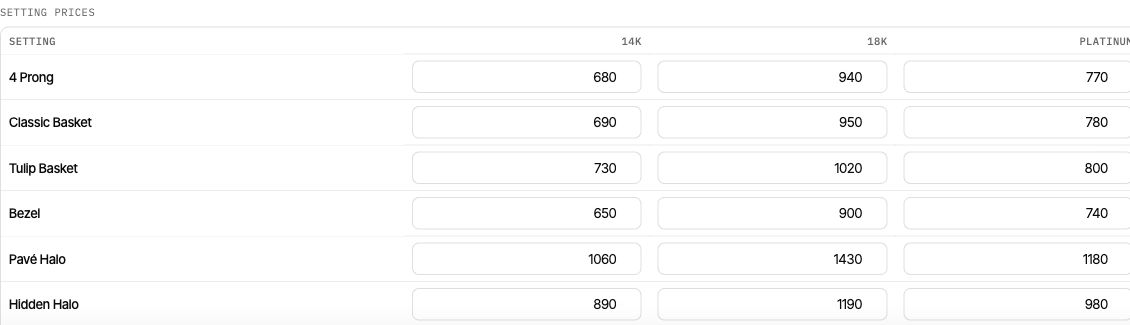
Open 3. Pricing → How are settings priced? One base price, plus add-ons suits a shared starting price with adjustments for metal, setting and band. Each setting has its own price per metal suits a catalogue that lists mounting prices by metal group.
When switching to per-metal pricing, blank offered cells may be prefilled from existing fixed amounts, with the base or mounting moved into setting prices. Percentage add-ons cannot be converted exactly; metals with differing add-ons within one group also need review. Read the conversion notice and compare several totals. Switching back does not automatically restore the old base.

Choose a diamond method for each origin
Under Diamond prices, open Lab Grown or Natural and choose a method. Tabs keep independent prices, weights, colour and clarity adjustments, fancy-colour prices and quote limits. Mounting, metals, setting, band, ring sizes, currency, exceptions and final rounding remain shared.
| Method | Use it when | What you enter |
|---|---|---|
| By carat weight | Each offered weight has one full diamond price | Full price at each weight |
| Per carat, by shape | Your catalogue uses a rate per carat for each shape | Shape rate; 1.5ct × 2,000 = 3,000 |
| By shape and carat weight | Prices vary by both shape and weight | Full white diamond price at each intersection |
| From my diamond feed | Shoppers choose a stock stone | Imported stone cost and markup rules |
The numbers above illustrate arithmetic, not recommended selling prices. Existing Lab pricing can remain on its legacy method until you deliberately change it. Enabling Natural is a separate action in Builder.
Fill the shape-and-weight table
- Enable the shapes you offer in Builder. Return to Pricing and select By shape and carat weight in the intended origin tab.
- Add the carat rows you sell. Rows are weights; columns are enabled shapes.
- Enter full white diamond prices, rather than prices per carat. Leave a cell blank only when that selection should require a quote.
- Add colour grade, clarity and fancy-colour adjustments separately. Test a white and a coloured centre.
- Review quote-only rows and Sold online up to limits, then save.
Prices for hidden shapes are retained. Hiding a shape does not mean its stored prices have been deleted. A zero full price is explicit and must be entered intentionally.
Paste prices from a spreadsheet
Arrange your spreadsheet to match the visible table: matching rows and columns, with prices only in the copied block. Click the first target price cell and paste. Values fill right and down into existing cells. Add the required rows first.
Currency symbols, thousands commas and spaces are stripped from numeric amounts. Headers, non-numeric values and blank cells are skipped. A blank pasted cell does not clear an existing price; clear it in the editor when you intend a quote. Check alignment after pasting, particularly after enabling another shape or changing metal groups.
Set sizes, exceptions and rounding
Use Sell online from to set the online size range for the selected size system. Choose whether sizes outside the range are not offered or quote only. The shortcut leaves other size systems unchanged. Review each system your store uses.
Use Exceptions for combination-specific adjustments. Avoid equally specific overlapping rules. Apply final rounding and verify finished ring totals rather than rounding each component yourself.
Verify before accepting orders
For a simple fixed-price example, a 1,200 setting, 200 band and 3,000 diamond total 4,400 before size, grade, colour, exception or rounding adjustments. Use your own known catalogue examples to check the selected method.
Save and read the status. Test a second metal, shape, weight and origin, then compare a real cart and checkout. Configure quote-only options · Set up both origins.